
The Forms tab
The Forms tab lists the forms a member has opened in their plans and lets you read their submitted answers. Use it to review an intake before a first visit, or to check whether a member has started a check-in.
Who can do this: Practice owners, staff and coaches · Available on: All plans
Open the Forms tab
- Go to Members and open the member.
- Click the Forms tab.
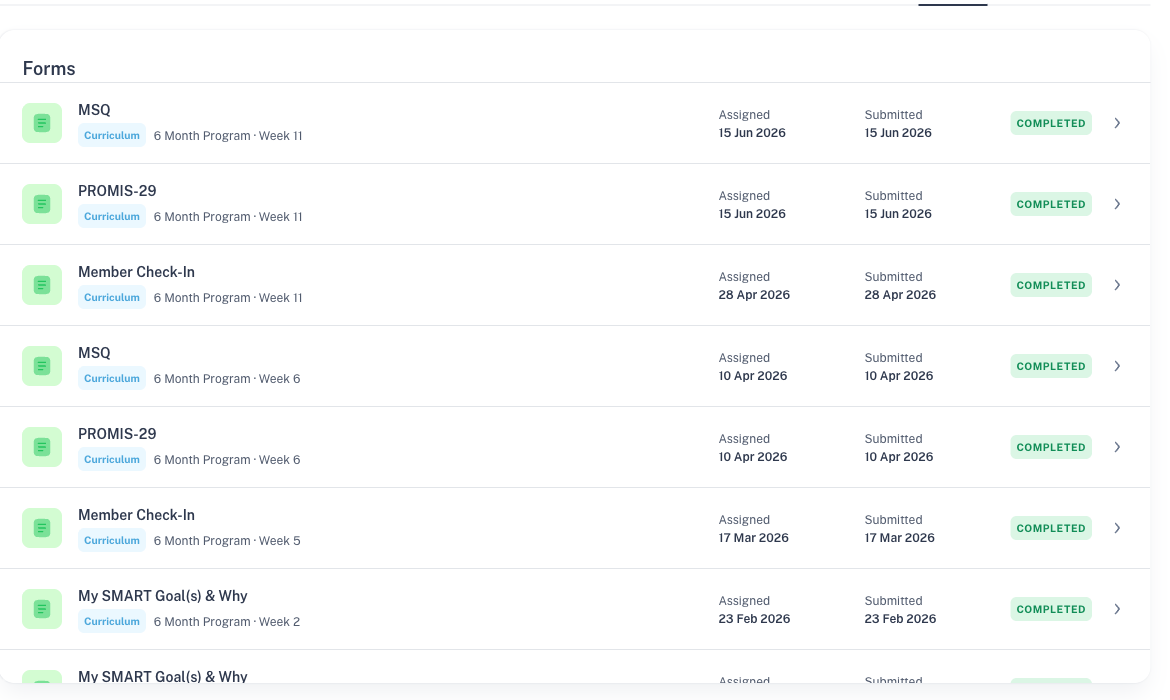
Each row shows the form's name, a Curriculum tag with the plan and module it belongs to, the Assigned date, the Submitted date if there is one, and a status. Submitted forms are listed first, newest at the top.
What the statuses mean
| Status | Meaning |
|---|---|
| Not Started | The member has opened the form in their plan but hasn't answered anything yet. |
| Incomplete | The member has saved at least one answer but hasn't submitted. |
| Completed | The member has submitted the form. You can read their answers. |
A form appears on this tab once the member opens it in their plan. Forms in modules they haven't reached, or haven't opened yet, don't appear here.
Read a member's answers
- Click a Completed form.
- The response page shows when it was submitted ("Submitted" with the date and time) and which plan and module it's part of, followed by the member's answers.
- Click Back to Forms to return.
Clicking a form that isn't completed shows its Assigned date (plus Started for an Incomplete form) and "Responses are private until the member submits this form." Answers stay hidden until then, including answers the member has saved as a draft.
While their plan is active, a member can change their answers and submit again. You always see their latest submission.
Before and after a visit
- Before a first visit: open the intake form to review the member's history and goals.
- When a member says they've done a check-in: confirm it shows Completed. If it shows Incomplete, they may not have clicked submit.
- For MSQ and PROMIS-29: the answers are here, and the scores are on the Metrics tab.
What you can and can't do here
- The Forms tab is read-only. Your team can't fill in, edit or submit a form for a member.
- There's no button to resend a form or send one to a member on its own. Members get forms through their plan, as a lesson in a module. To give a member a form, add it to their plan. See Forms.
If something goes wrong
| What you see | What it means | What to do |
|---|---|---|
| "No forms assigned yet" | The member hasn't opened any forms in their plans yet. | Check their progress on the Progress tab, or remind them where the form is in their plan. |
| A form you expected isn't listed | The member hasn't opened it yet, or it isn't in their plan. | Check the member's plan on the Care Plan tab. |
| "Unable to load forms for this member." | The list didn't load. | Refresh the page. If it keeps happening, contact Vibility support. |
| "Unable to load this response. Please try again." | The response didn't load. | Go Back to Forms and open it again. |