
Signing in and resetting your password
Sign in to Vibility, reset a forgotten password, and switch between practices or roles if you have more than one. This article is for your practice team. If a member can't sign in, see Member login help.
Who can do this: Practice owners, staff and coaches · Available on: All plans
Sign in for the first time
When your practice or Vibility adds you, you receive an invitation email.
- Open the link in the email. The page reads Welcome to followed by your practice or platform name.
- Enter a password in Create password and again in Confirm password.
- Click Set password and continue. You're signed in and taken straight to your Dashboard.
If the two passwords are different, the page tells you they don't match. Type the same password in both fields.
Your password needs at least 8 characters, with an uppercase letter, a lowercase letter, a number and a symbol.
Sign in
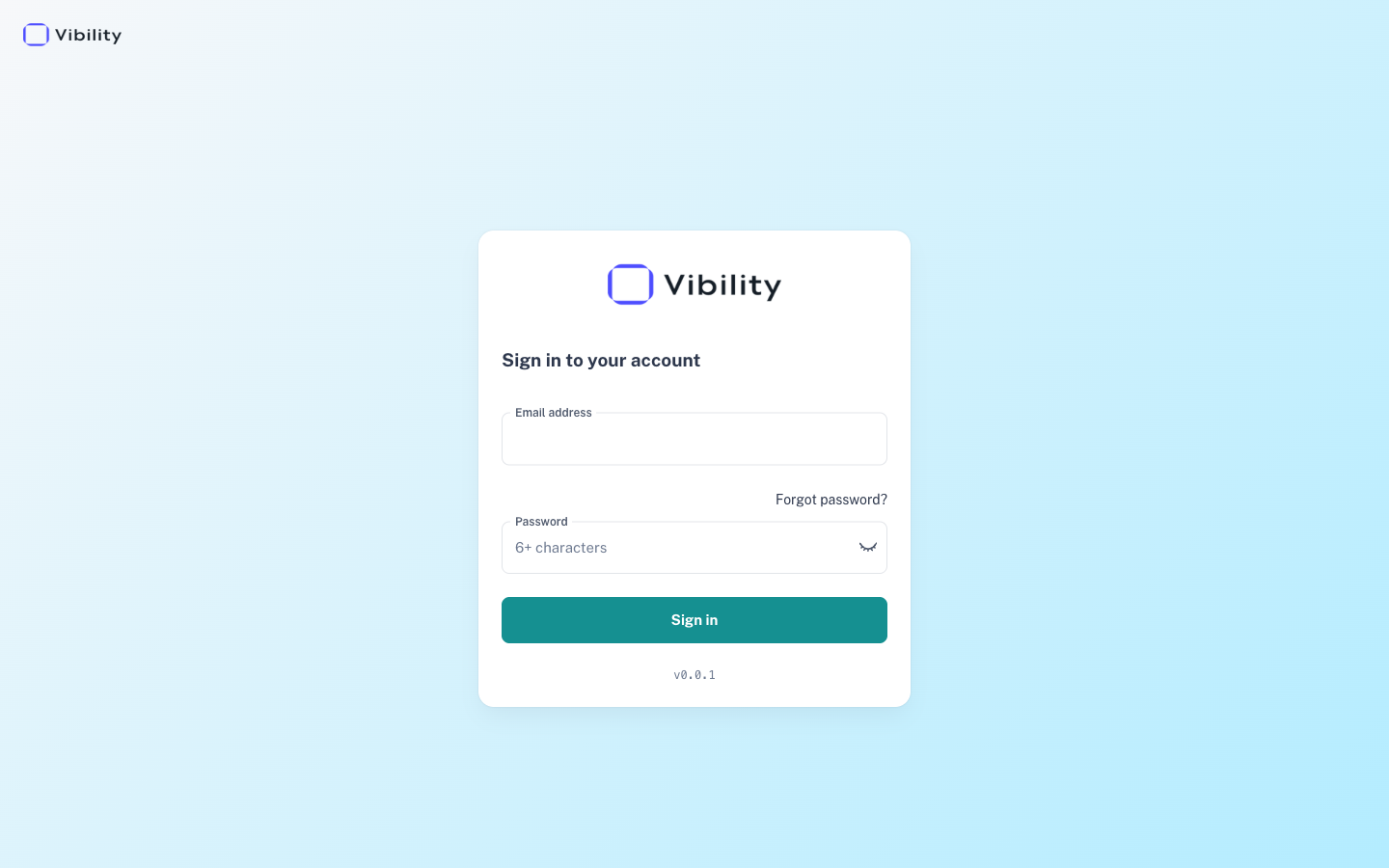
- Go to your practice's sign-in page. It may show your practice's logo and its own heading instead of Sign in to your account.
- Enter your Email address and Password.
- Click Sign in. You land on your Dashboard.
Reset a forgotten password
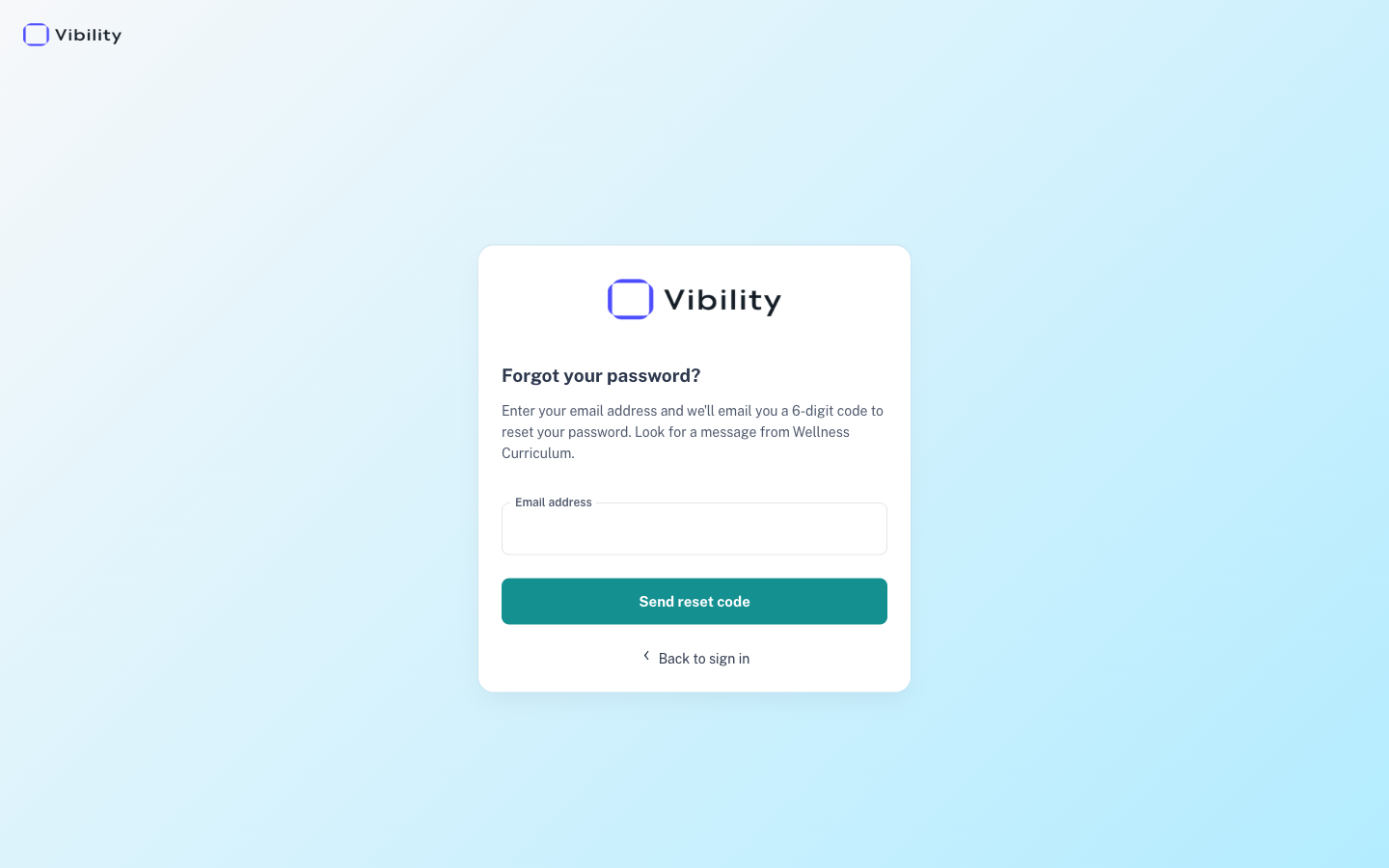
- On the sign-in page, click Forgot password?
- Enter your Email address and click Send reset code.
- Look for an email from Wellness Curriculum with a 6-digit code.
- On Enter confirmation code, check your email address, enter the code in Confirmation code, and click Validate code.
- On Reset your password, enter your password in New password and again in Confirm new password, then click Reset password. The same password rule applies: at least 8 characters, with an uppercase letter, a lowercase letter, a number and a symbol. The hint on this screen says "6+ characters", but the 8-character rule still applies.
- You'll see "Password reset successfully!" and return to the sign-in page. Sign in with your new password.
Switch between roles
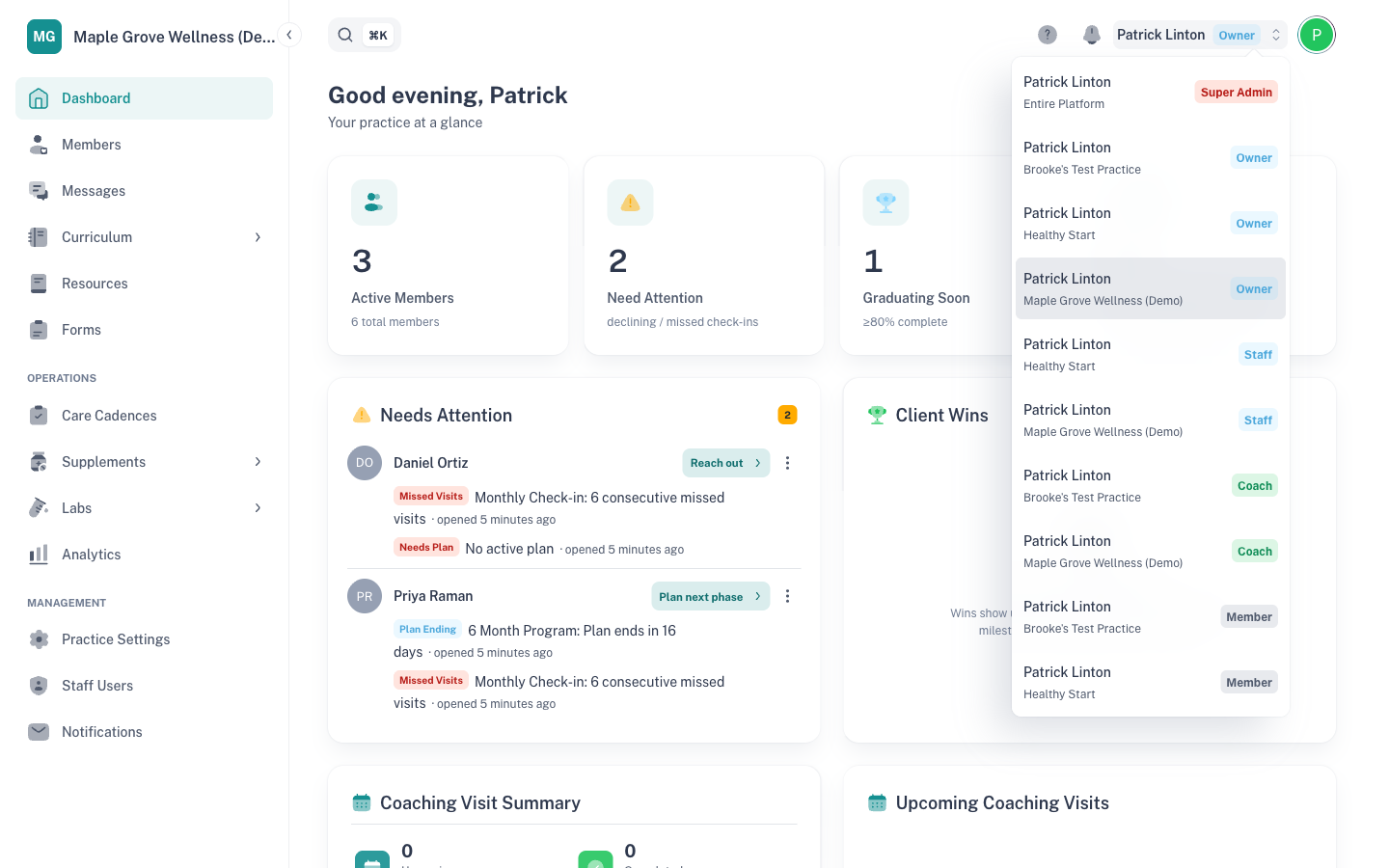
If you have more than one role (ie. Owner and Coach roles), an account switcher appears at the top right. The switcher shows your name and current role: Owner, Staff, Coach or Member.
- Click the account switcher at the top right.
- Pick the account you want. Each one shows its role and practice name.
- You go to that account's Dashboard. If you pick a Member account, you go to the member view instead.
Good to know
- If you only have one account, the switcher doesn't appear.
- On a phone, the switcher shows only an arrows icon. Tap it to see your accounts.
- What you see in the menu depends on the role you're signed in as. See Roles: what owners, staff and coaches can do.
- To sign out, open your profile menu at the top right and click Logout.
- After you click Validate code, your old password stops working. If you stop partway, or the 15 minutes run out, start the reset again from Forgot password?
If something goes wrong
| What you see | What it means | What to do |
|---|---|---|
| "No refresh token available" shows briefly after clicking Sign in, then the sign-in page reloads | The email or password didn't match. | Check your email address and password, or reset your password. |
| No reset code arrives | The email may be in spam, or you haven't finished setting up your account from your invitation. | Check spam for a message from Wellness Curriculum. If you never set a password, ask your practice owner to click Resend login email on your page in Staff Users. |
| "Password reset expired" | The reset page was opened without its link, for example after a reload, from a bookmark or by going to it directly. | Start the reset again from Forgot password? |
| You click Reset password and land back on the sign-in page | More than 15 minutes passed after you entered the code. | Start the reset again from Forgot password? |
| "Passwords don't match!" on the reset page | The two new passwords are different. | Type the same password in both fields. |
| "This invite is invalid or has expired. Ask whoever invited you to send a new one." | Your invitation link no longer works. | Ask a practice owner or staff member to click Resend login email, or contact Vibility support. |