
Adding staff and coaches
Give your team their own logins so they can work with your members. This article covers adding a person, what they receive, and giving someone a second role.
Who can do this: Practice owners and staff · Available on: All plans
Add a new team member
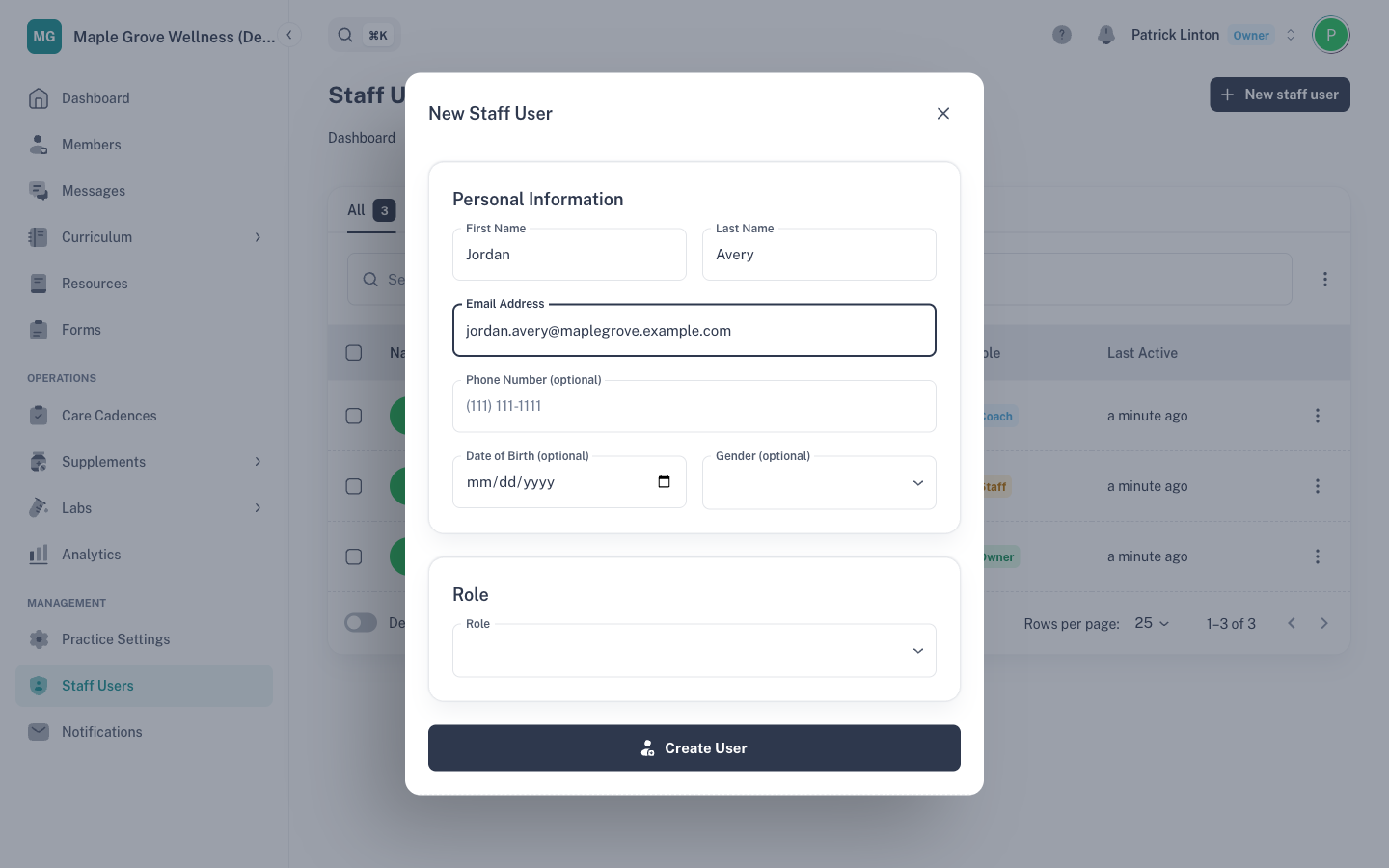
- Go to Staff Users and click New staff user.
- Under Personal Information, enter First Name, Last Name and Email Address. Phone, date of birth and gender are optional.
- Under Role, choose Owner, Staff or Coach. Your practice is filled in for you.
- Click Create User.
You'll see "Staff user created. Login email sent." The person appears in the list under All and under the tab for their role (Owner, Staff or Coach).
Which role to choose
- Owner: everything in your practice, including your subscription. Only an owner can add another owner.
- Staff: front desk and operations. Registers members, handles billing, and manages your team.
- Coach: a practice coach. Works with members and customizes curriculum, but doesn't see Practice Settings, Staff Users or Notifications.
See Roles: what owners, staff and coaches can do for the full comparison.
What the new person receives
Vibility emails them an invitation that uses your practice's branding. It comes from Wellness Curriculum. They click Accept your invitation, set a password and click Set password and continue. They're then signed in automatically, with no separate sign-in step.
- The invitation link works for 7 days.
- If they lose it or it expires, open them in Staff Users and click Resend login email. This button shows until they sign in for the first time. Sending a new link cancels the old one.
- Once they've signed in, the same place shows Send password reset email instead.
Give someone a second role
One person can hold more than one role with a single login. For example, a practice coach who also helps at the front desk can be both Coach and Staff.
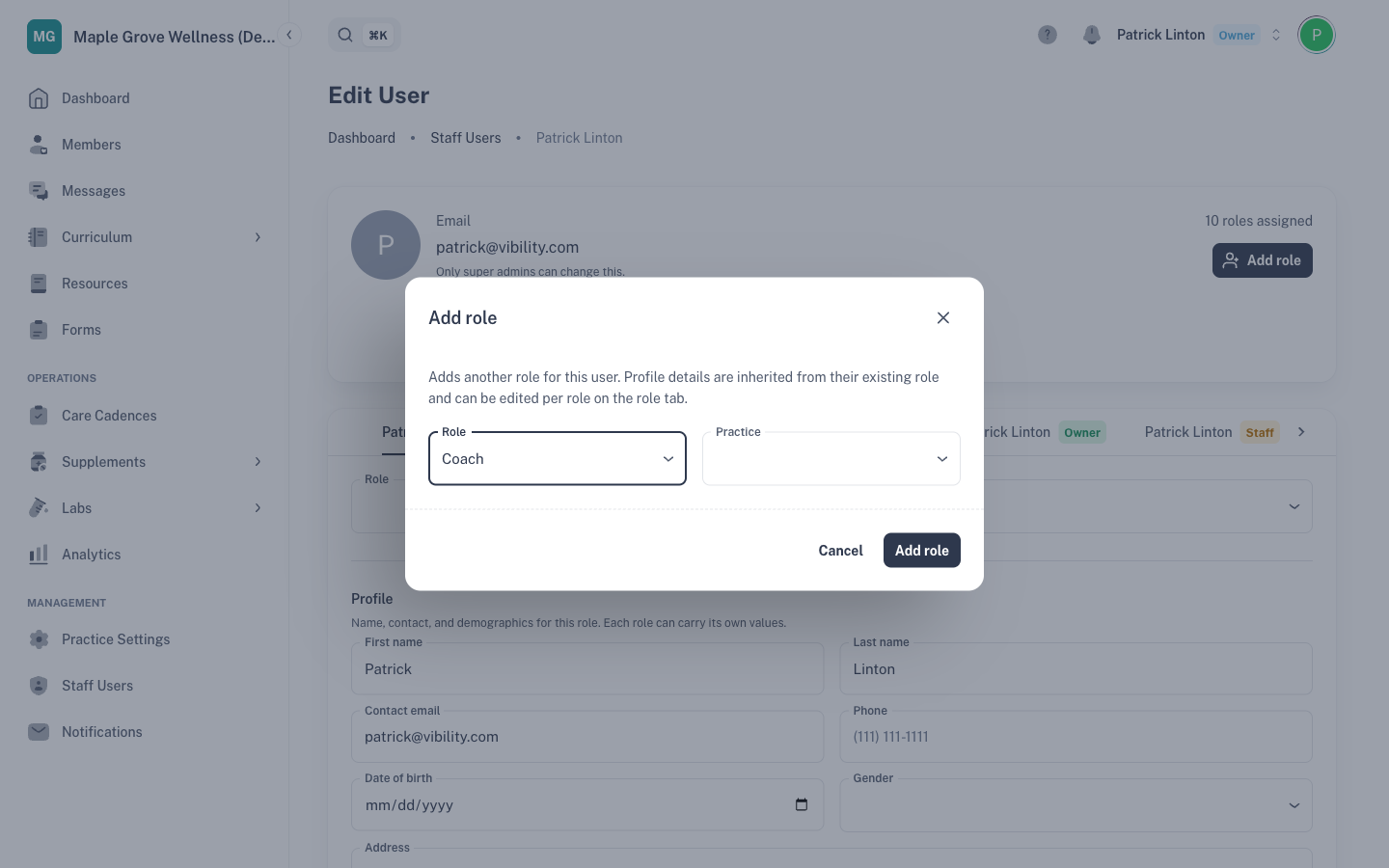
- Go to Staff Users and click the person's name.
- Click Add role.
- Choose the Role and check that Practice shows your practice.
- Click Add role in the dialog. You'll see "Role added".
Each role gets its own tab on the person's page, where you can edit the profile details for that role.
Registering a team member as a member
Your team can also go through your programs as members. In Add role, choosing Member takes you to Member Registration (the button reads Continue to registration). There you choose a plan, and the usual activation is charged. You can also register people with the Staff role from Members → New member → Register existing staff. See Registering a member.
Good to know
- The email address is their login. Only Vibility can change a team member's login email, so contact Vibility support if it needs to change.
- Adding a role doesn't send a new invitation. The person signs in with the login they already have.
If something goes wrong
| What you see | What it means | What to do |
|---|---|---|
| "User with this email already exists" | That email already has a Vibility login, perhaps as a member or at another practice. | If they're already on your team, open them in Staff Users and use Add role. Otherwise contact Vibility support. |
| "Your role does not allow assigning the 'owner' role in this practice" | Only practice owners can add another owner. | Ask a practice owner. |
| "This invite is invalid or has expired. Ask whoever invited you to send a new one." (seen by the new person) | The link is more than 7 days old, or a newer one was sent. | Open them in Staff Users and click Resend login email. |
| "This user already has a Member role in this practice." | They're already registered as a member. | Open their member profile from Members instead. |