
Registering a member
Register a new member, choose their plan and care cadences, and see exactly what your card will be charged today.
Who can do this: Practice owners and staff · Available on: All plans
A care cadence is the schedule of coaching or check-in visits a member receives. You can only choose cadences in your practice's cadence Practice Catalog.
Register a new member
Go to Members and click New member. Member Registration opens on Register new member. The form has five parts. Work through them top to bottom; the Billing Summary on the right updates as you go.
1. Member Information
Enter the member's First Name, Last Name, Date of Birth, Gender, Email Address and Phone Number. All six are required. The member signs in with this email address, so check it carefully.
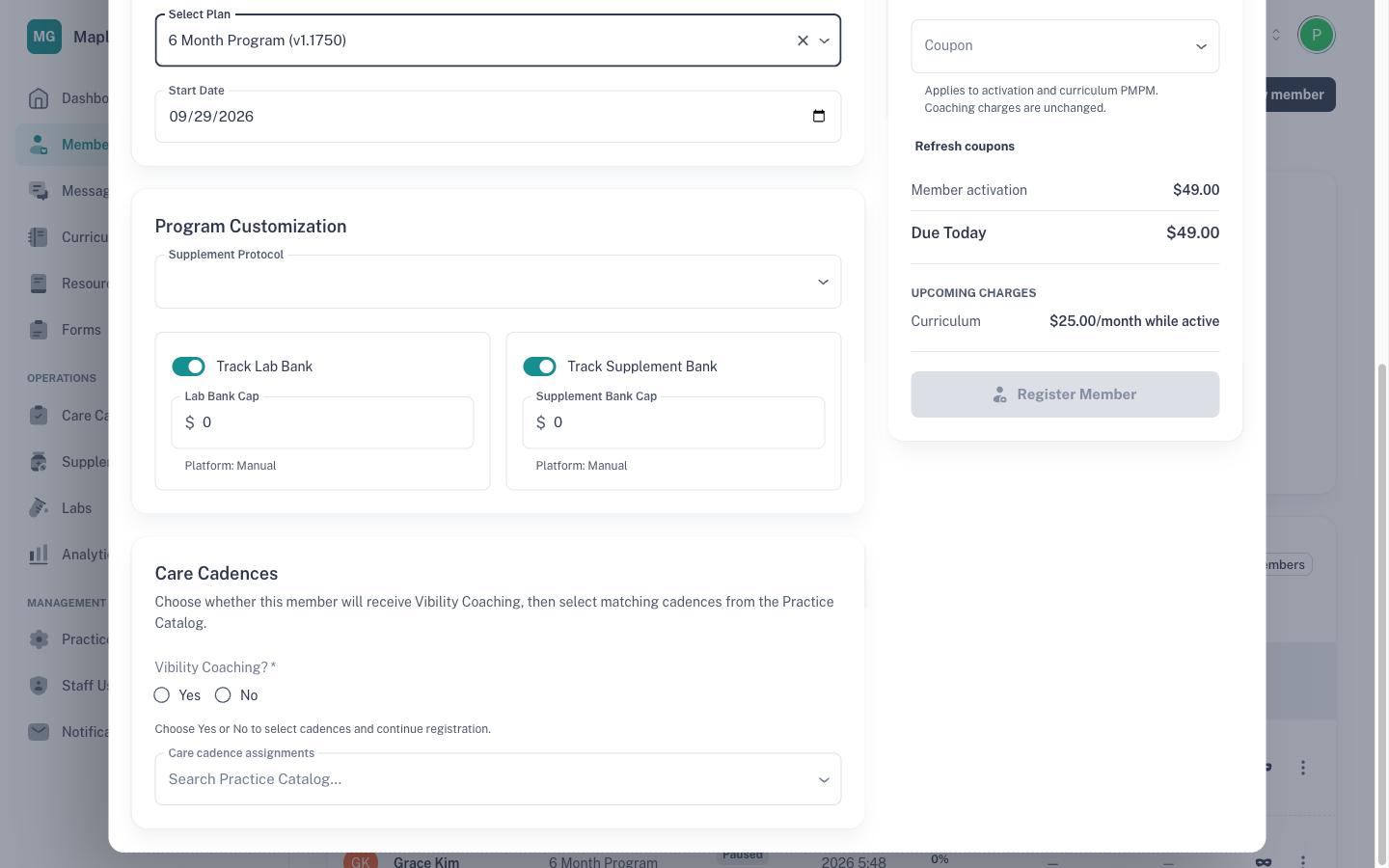
2. Plan Selection
Choose the plan under Select Plan and set the Start Date. Only plans in your Practice Catalog are listed. See The Library and your Practice Catalog.
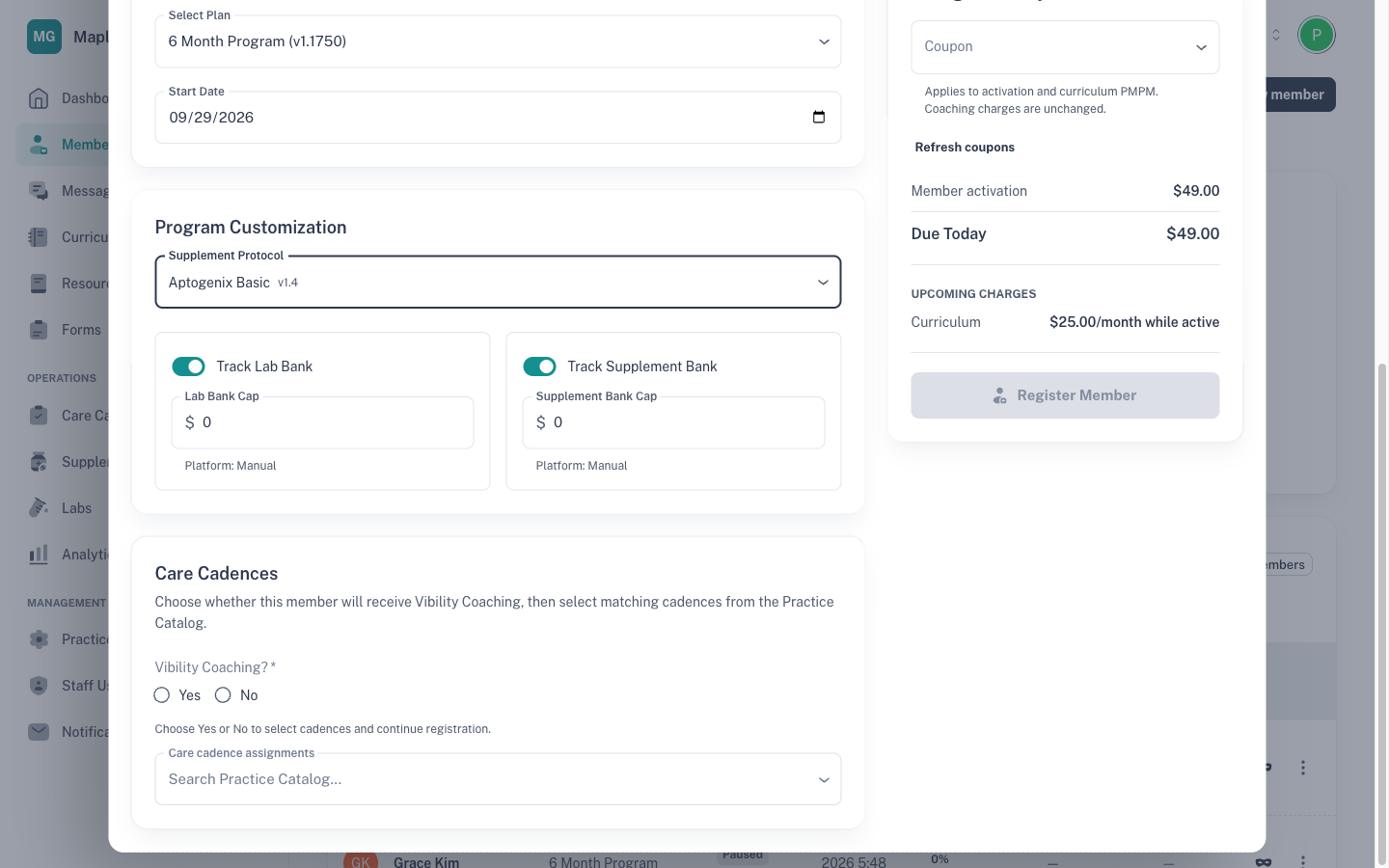
3. Program Customization
- Supplement Protocol: pick a protocol from your Practice Catalog, or leave it empty. If the protocol is an Aptogenix bundle (marked Aptogenix), an Aptogenix cart section appears. Add the member's shipping address there so the cart can be created and completed after registration in Aptogenix portal.
- Track Lab Bank and Track Supplement Bank: switch these on to track the member's lab and supplement budget, and set the Lab Bank Cap and Supplement Bank Cap. The caps start at your practice's defaults from Practice Settings → Integrations.
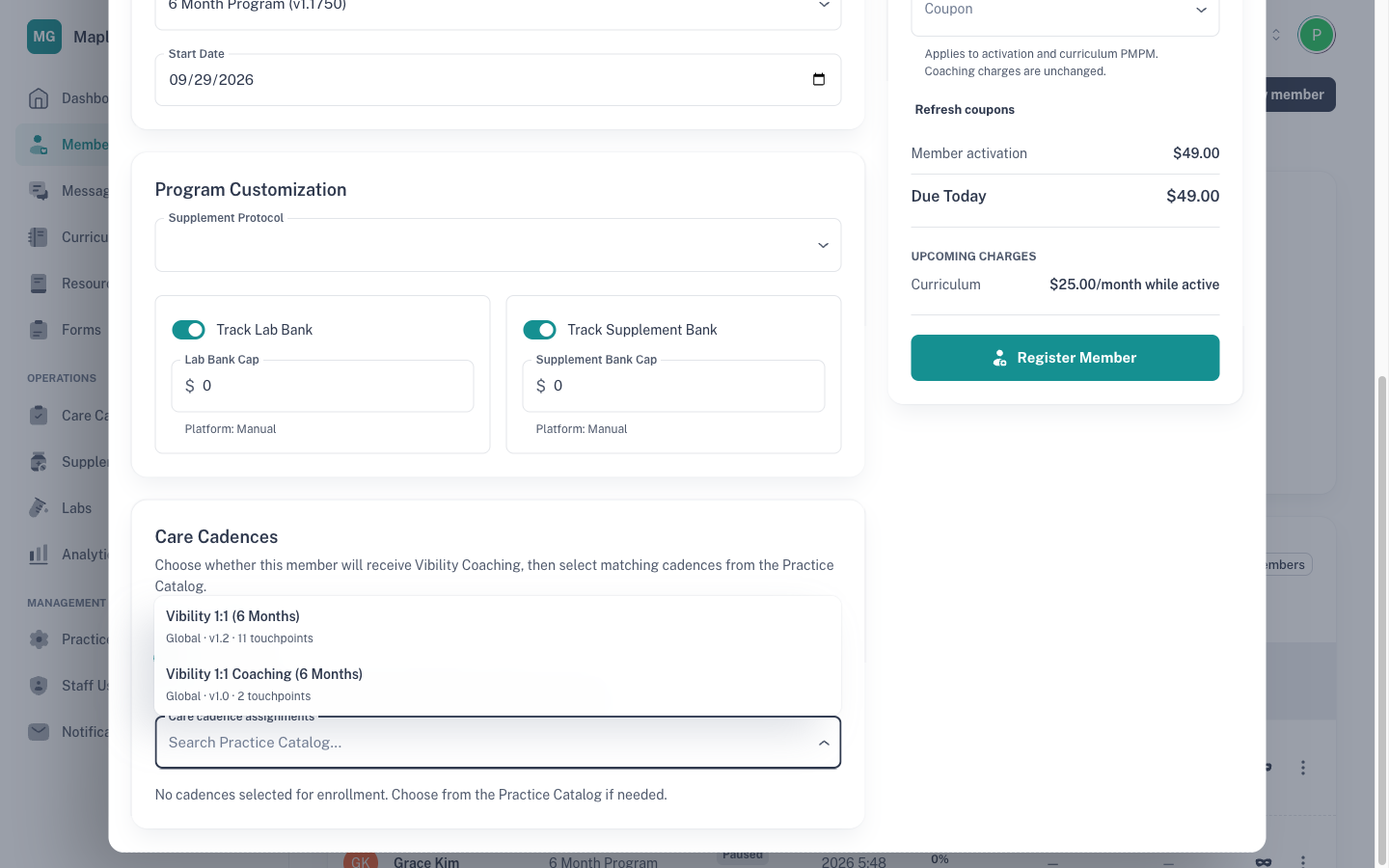
4. Care Cadences
Answer Vibility Coaching?:
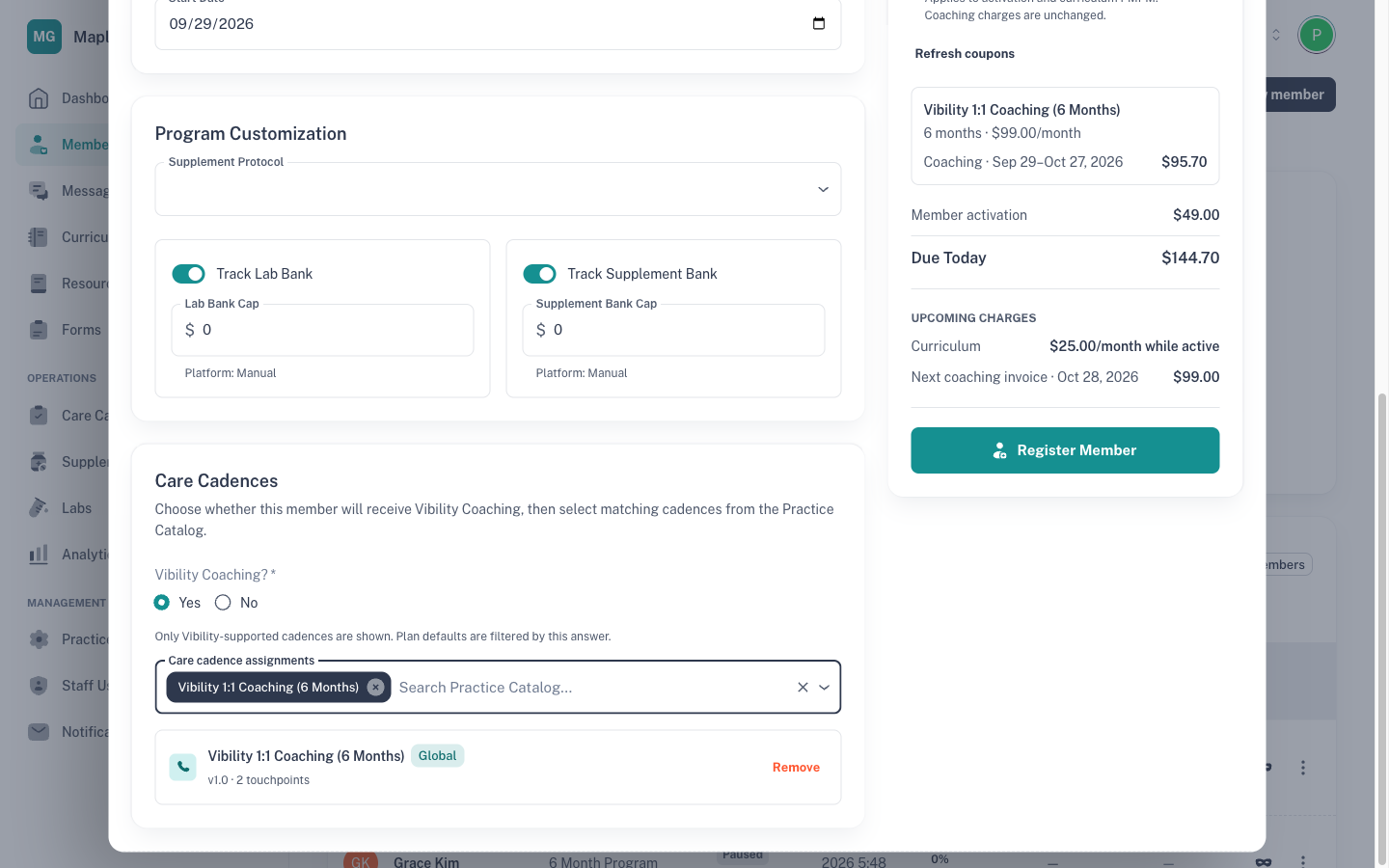
- Yes offers only Vibility-supported cadences.
- No offers only cadences without Vibility support.
- Either answer fills in the plan's default cadences of the matching kind. The hint on screen reads "Plan defaults are filtered by this answer."
- Changing your answer clears picks that no longer match.
Then review Care cadence assignments.
5. Billing Summary and register
- Choose a Coupon if you have one.
- Check the summary. It shows Member activation, a line for the first period of each Vibility coaching cadence, any Stripe credit applied or Stripe debit applied, and Due Today, the amount your card is charged now. Upcoming charges show the monthly platform fee and the next coaching invoice.
- Click Register Member.
Register someone who already has a login
Use this when the person is already on your team, so they keep their existing login. Registration then works as for a new member, and activation is charged.
If they have the Staff role
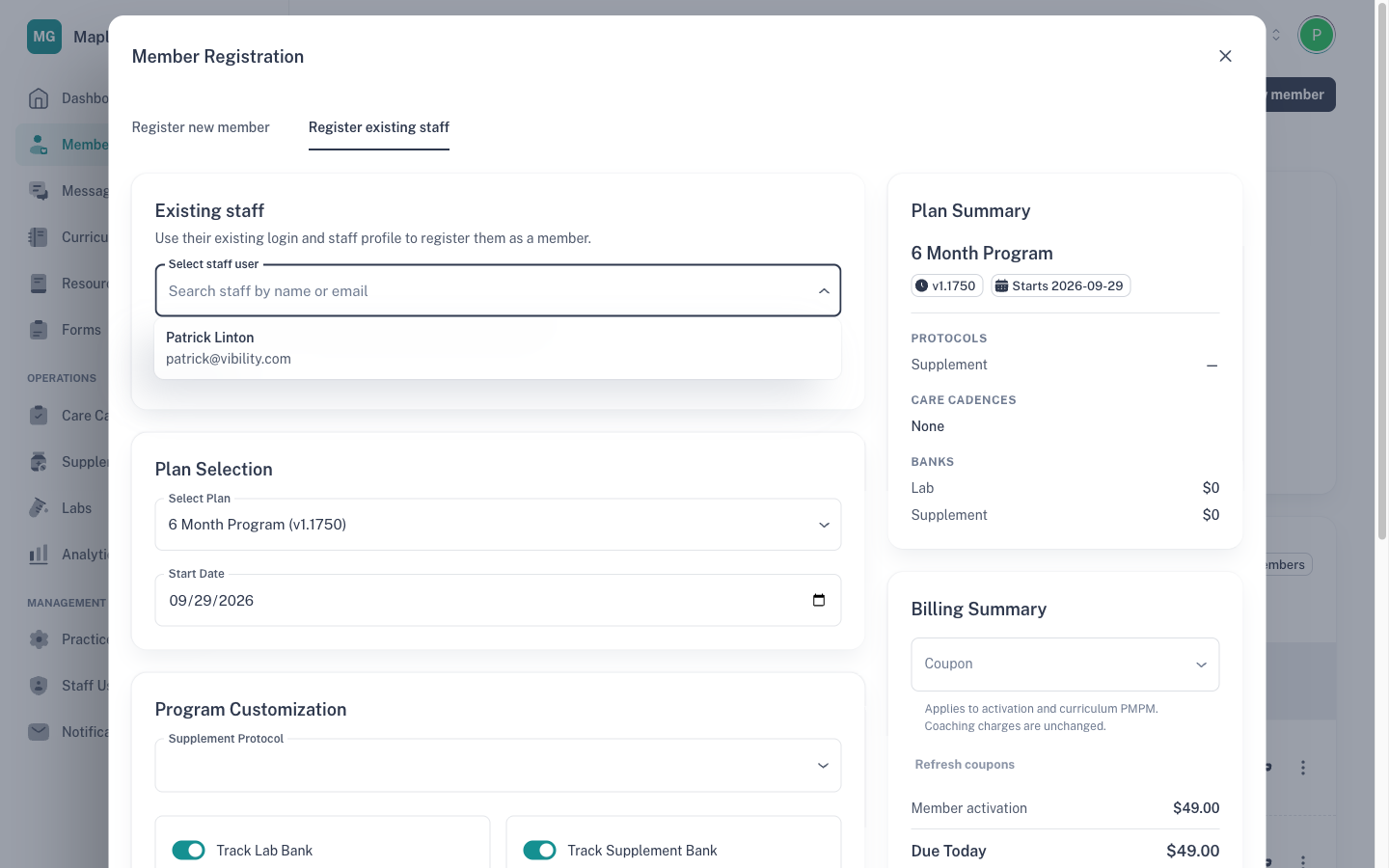
- Go to Members, click New member and open Register existing staff.
- In Select staff user, search by name or email. Only people with the Staff role who aren't already members are listed.
- Continue from step 2 above, then click Register staff as member.
Anyone else on your team (for example, an owner or a practice coach)
- Go to Staff Users and open the person.
- Click Add role, set Role to Member and choose your practice.
- Click Continue to registration. Member Registration opens with their details filled in.
- Continue from step 2 above, then click Register as member.
Good to know
- Activation ($49) is charged once per member at your practice, when you first register them. A second plan for the same member doesn't charge it again; reinstating an archived member does. With Vibility coaching, the coaching up to your next billing day is charged at the same time. See How billing works.
- Coupons appear once you choose a plan. They discount activation and the monthly platform fee for this plan enrollment, never coaching. Staff coupons work for anyone with a Staff role, through Register existing staff or through Add role → Member.
- A credit on your Vibility billing account lowers the card charge. An outstanding balance is added to it.
- A card charge must be at least $0.50. If a coupon or credit would leave between $0.01 and $0.49 due, registration stops. Choose a coupon that covers the full amount, choose no coupon, or contact Vibility support.
- Supplement orders. The Aptogenix cart depends on the Supplement Protocol you choose under Program Customization. If it's an Aptogenix bundle, the cart is created only when your practice's Aptogenix connection is set up and the member has a valid date of birth and a full shipping address. Without these, the member is still registered.
- Practice coaches can open Member Registration but can't complete a paid registration or apply coupons.
- Answering Yes to Vibility Coaching? needs Vibility coaching turned on for your practice. See Vibility coaching vs practice-managed coaching.
If something goes wrong
| What you see | What it means | What to do |
|---|---|---|
| "First name is required!", "Gender is required!", "Phone number is required!" (or another field) | A required field in Member Information is empty. | Fill in the field. All six member details are required. |
| "Start date is required!" | No Start Date is set. | Choose a start date under Plan Selection. |
| "Choose Yes or No for Vibility Coaching before registering." | The coaching question is unanswered. | Answer Vibility Coaching? |
| "No Vibility-supported cadences in the Practice Catalog" or "No cadences without Vibility support in the Practice Catalog" | Your cadence catalog has no matching cadence. | Add one in Care Cadences, or change your answer. |
| "Vibility coaching is not enabled for this practice." | You chose Yes, but Vibility Coaching isn't turned on. | Choose No, or contact Vibility support. |
| "A selected cadence changed or is no longer in the Practice Catalog. Review the assignments and coaching charges before registering." | A cadence changed while the dialog was open. | Review Care cadence assignments and Due Today, then register. |
| "Cadences in the Practice Catalog are still loading. Try again in a moment." | The list hasn't loaded yet. | Wait a moment and try again. |
| "This cadence is not in the Practice Catalog." | The cadence was removed from your catalog. | Add it back, or choose another. |
| "Billing terms changed. Review the updated summary before registering." | Your balance or a coupon changed while the dialog was open. | Check Due Today again, then register. |
| "This discount leaves less than $0.50 due. Use a full waiver or a discount that leaves at least $0.50 due." | The card amount would be below the minimum. | Choose a coupon that covers the full amount, or no coupon. |
| "Activation must be $0 or at least $0.50" | Your billing credit would leave less than $0.50 for the card. | Contact Vibility support. |
| "Billing setup required" | Your practice has no card on file, or practice billing isn't turned on yet. | If no card is on file, click Open billing settings and add one. Otherwise, contact Vibility support. |
| "Member activation billing requires a platform admin, practice owner, or staff role" (or "Member registration billing requires…") | You're registering from a practice coach account. | Ask an owner or staff member to register the member. |
| "Practice billing access is required." (under Coupon) | Practice coaches can't load coupons. | Ask an owner or staff member. |
| "No eligible staff found. Existing members are excluded." | No staff match your search, or they're already members. | Check the spelling, or use Add role from Staff Users. |
| "This staff user is no longer available for registration. Refresh the staff list." | The person's role or membership changed. | Reopen Select staff user and choose again. |
| "You cannot register staff in this practice" or "You do not have permission to register a member in this practice." | Your role can't do this. | Ask a practice owner or staff member. |
| "This user already has a Member role in this practice." | The person is already a member. | Open their member profile instead. |
| "Add a valid date of birth in member Settings, then create the Aptogenix cart from the Supplements tab." | The member was registered, but no supplement cart was created. | Add their date of birth in the member's Settings tab, then create the cart from Supplements. |
Related articles
- How billing works: activation, monthly platform fee and coaching
- Care cadences and your cadence catalog
- Vibility coaching vs practice-managed coaching
- Adding staff and coaches